Program Editor Overview
The Program Editor is a visual workspace for creating automation programs. Programs are assembled by connecting blocks that receive data, process values and trigger actions.
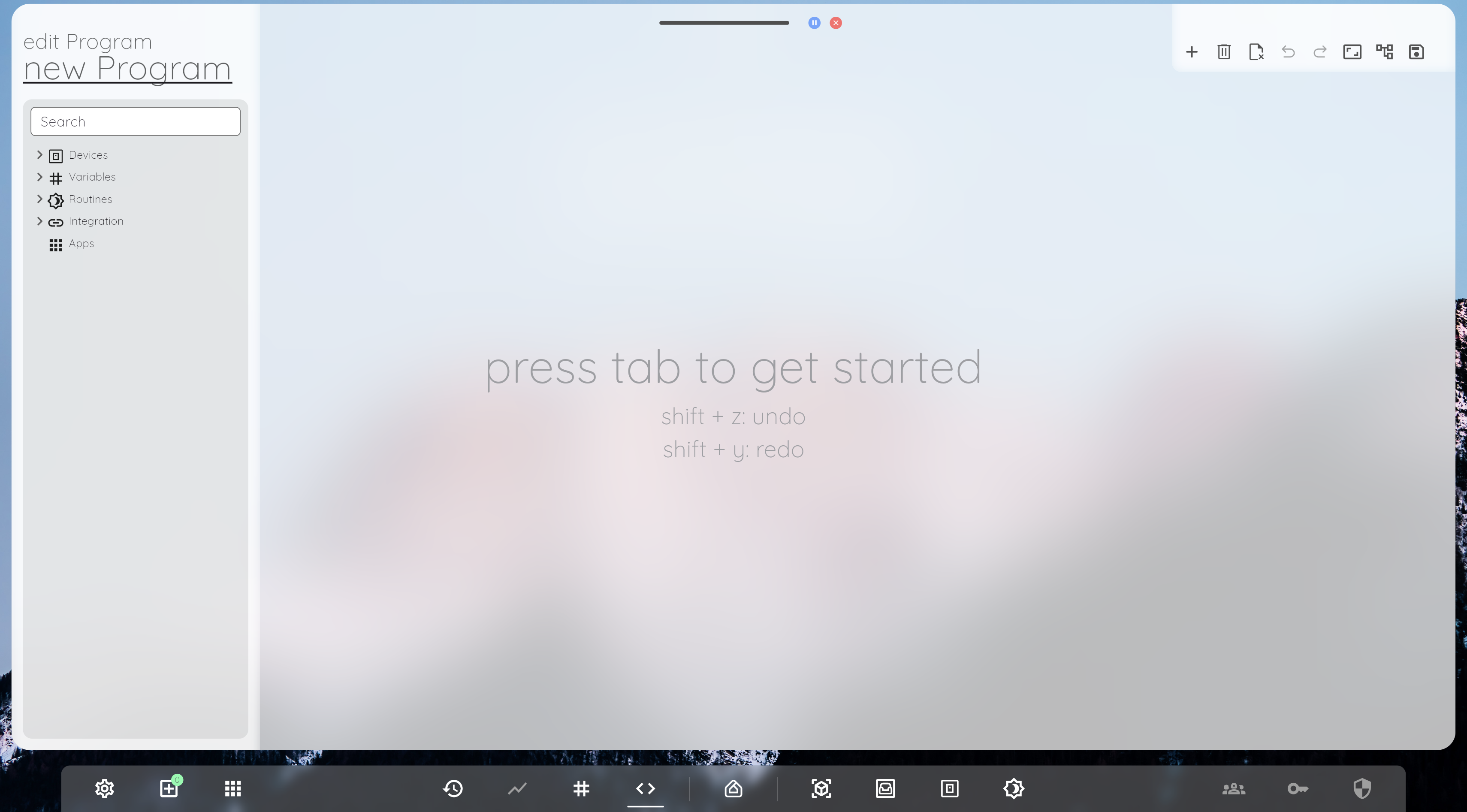
How a program is structured
A program consists of blocks and the connections between them:
- Inputs provide values to a block.
- Settings define how a block behaves.
- Outputs pass the result to subsequent blocks.
- Connections determine how data moves through the program.
Block categories
The available blocks are grouped by purpose, including Logic, Math, Control, Text, Color, JSON, Vector and Extension Blocks.
Tool buttons
These Buttons identify commonly used actions in the Program Editor:
Getting started
- Add the required blocks to the workspace.
- Configure their settings and input values.
- Connect outputs to compatible inputs.
- Validate and run the program.